
Sometimes, the endless scroll of Reels, Stories, and notifications becomes too much. Whether you're preparing for exams, focusing on work, or simply craving a digital detox — temporarily deactivating your Instagram account is the perfect solution.
In 2026, Meta moved all account controls to the unified Accounts Center. While this makes managing multiple apps easier, finding the exact deactivation button can be confusing. This guide walks you through every step — and shows you how to save your favorite content before you go offline.
1. Deactivation vs Deletion — What's the Difference?
These two options are often confused. Here's exactly how they differ:
| Feature | Temporary Deactivation | Permanent Deletion |
|---|---|---|
| Profile Visibility | ✅ Hidden immediately | ✅ Hidden immediately |
| Data Preservation | ✅ Everything saved forever | ❌ Erased after 30 days |
| Recovery | ✅ Login anytime | ⚠️ Only within 30 days |
| Followers & Messages | ✅ Fully preserved | ❌ Permanently lost |
| Username | ✅ Reserved for you | ❌ Anyone can claim it |
| Best For | Digital detox, study break, mental health | Leaving Instagram forever |
2. ⚠️ Save Your Content Before Deactivating
Once you deactivate, you can't access your saved Reels, liked posts, or DMs until you reactivate. Before going dark, backup the content you love:
🎬 Download Your Favorite Reels
Use the FastINDL Reels Downloader to save viral videos, workout tutorials, and recipes directly to your gallery — HD quality, no watermark.
📸 Backup Stories & Highlights
Use the Story Downloader to save your favorite stories and highlights before they expire or become inaccessible.
🖼️ Save Photos & Carousels
Use the Carousel & Photo Downloader to keep your best pictures in original HD resolution.

3. How to Deactivate Instagram on Mobile (iPhone & Android)
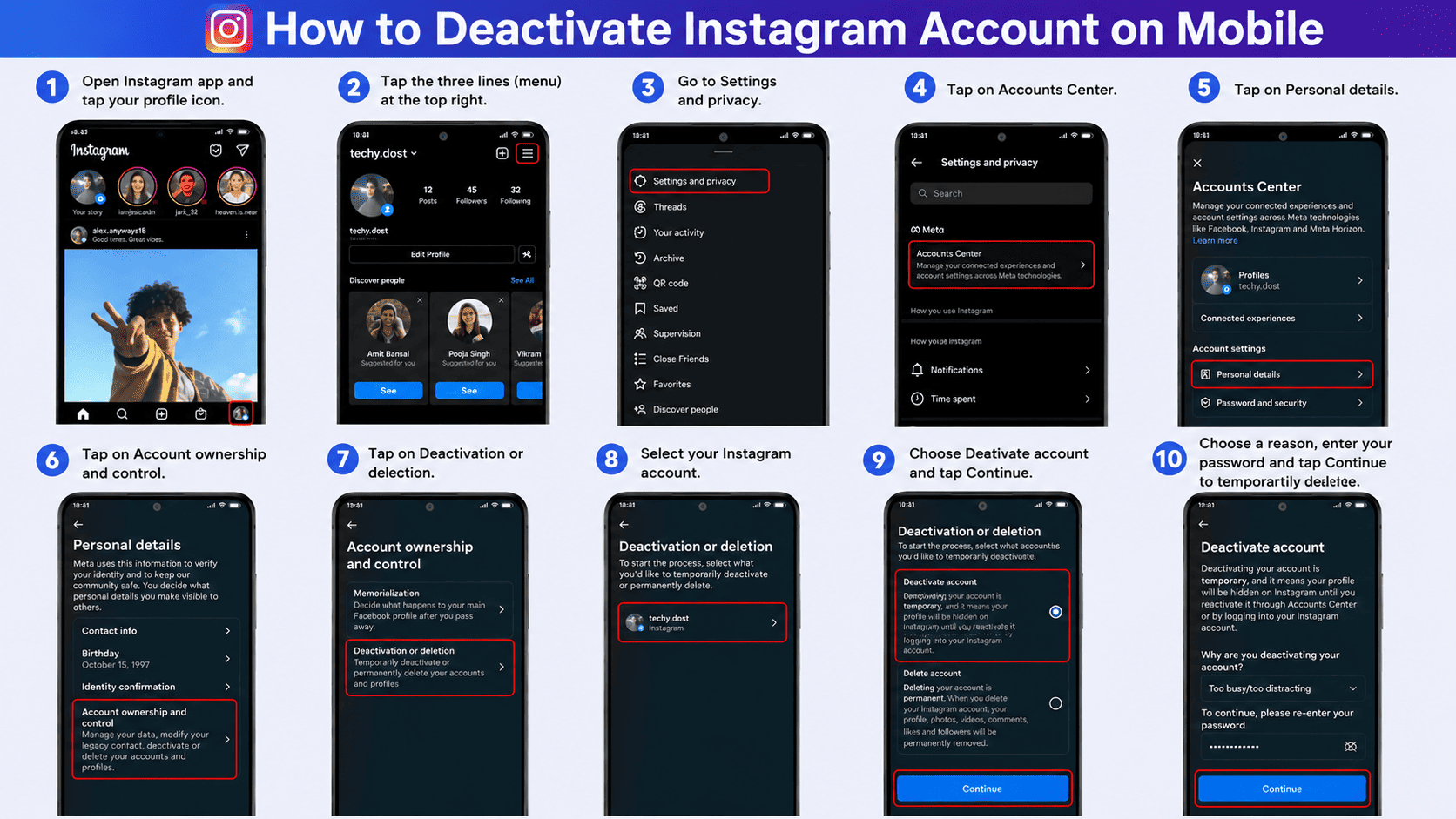
The interface for iOS and Android is now identical. Follow these 8 steps:
📱 Step 1: Open Settings
Open Instagram → tap your Profile (bottom-right) → tap ☰ (top-right) → select Settings and Privacy.
🔗 Step 2: Go to Accounts Center
Tap Accounts Center at the very top. This is Meta's unified hub for Instagram, Facebook, and WhatsApp settings.
👤 Step 3: Personal Details
Scroll down and tap Personal details under Account settings.
🔐 Step 4: Account Ownership
Tap Account ownership and control → Deactivation or deletion.
💤 Step 5: Choose Deactivate
Select your Instagram account → choose Deactivate account (make sure it's NOT set to Delete) → tap Continue → enter your password → select a reason → confirm.
4. How to Deactivate Instagram on Desktop / PC
Prefer a bigger screen? The desktop method is straightforward:
- Go to Instagram.com and log in.
- Click More (bottom-left sidebar) → Settings.
- Click Accounts Center in the left menu.
- Navigate: Personal details → Account ownership and control → Deactivation or deletion.
- Select your account, choose Deactivate account, enter your password, and confirm.
5. What Happens When You Deactivate?
Here's exactly what changes after you hit that deactivate button:
- Profile Hidden: Your profile, photos, comments, likes, and followers list become completely invisible to everyone — as if your account doesn't exist.
- Search Results: Your username won't appear in Instagram search. Anyone searching for you will see "User not found."
- Messages: Your existing DM conversations remain, but your profile picture disappears and your name shows as "Instagram User."
- Data Saved: Everything — followers, posts, stories archive, saved collections — is preserved on Meta's servers.
- Tagged Posts: Your username still appears on photos you were tagged in, but it won't be clickable.
6. How to Reactivate Your Account
Done with your detox? Reactivating is ridiculously simple:
- Open the Instagram app or go to Instagram.com.
- Enter your Username and Password — just like normal login.
- That's it. No confirmation screens, no waiting period.
- Your profile, followers, photos, messages — everything reappears instantly, exactly as you left it.