
Whether you're taking a stand against social media addiction, protecting your privacy, or simply starting fresh — deleting your Instagram account is a big decision. In 2026, Meta has moved all account controls to the unified Accounts Center, making the process different from previous years.
This guide covers everything: the exact steps for mobile and desktop, how to backup your precious Reels and photos before deleting, what happens during the 30-day grace period, and how to recover your account if you change your mind.
1. Deactivation vs Deletion — What's the Difference?
Many people confuse these two options. Here's a clear breakdown:
| Feature | Temporary Deactivation | Permanent Deletion |
|---|---|---|
| Profile Visibility | Hidden immediately | Hidden immediately |
| Data Retention | Everything saved forever | Erased after 30 days |
| Recovery | ✅ Login anytime | ⚠️ Only within 30 days |
| Followers & Messages | ✅ Preserved | ❌ Permanently lost |
| Username | ✅ Reserved for you | ❌ May be taken by others |
| Best For | Digital detox, temporary break | Leaving Instagram forever |
2. ⚠️ Backup Your Data Before Deleting
Once you delete your account, everything is gone forever — your saved Reels, favorite Stories, tagged photos, and DMs. Instagram's built-in "Download Your Information" tool is slow and gives you messy ZIP files.
Here's a better approach — use FastINDL's free tools to save exactly what you want in HD:
🎬 Save Your Favorite Reels
Use the Instagram Reels Downloader to save viral videos, tutorials, and memories directly to your gallery — no watermark, HD quality.
📸 Backup Stories
Use the Story Downloader to save your own stories and highlights before they vanish.
🖼️ Download Photos & Carousels
Use the Carousel & Photo Downloader to keep your best pictures in original resolution.

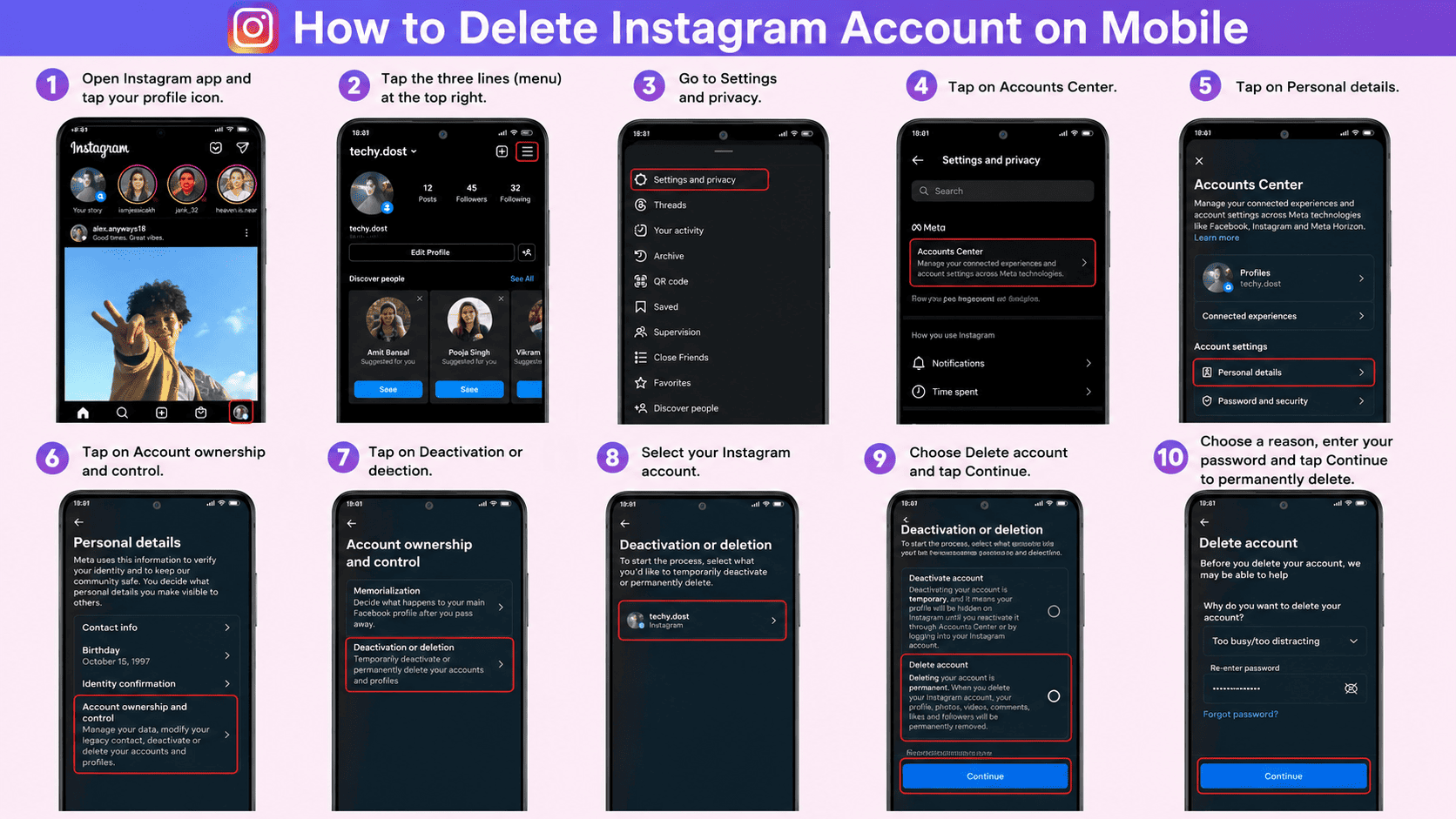
3. How to Delete Instagram on Mobile (iPhone & Android)
The steps for iOS and Android are now identical thanks to Meta's unified interface:
📱 Step 1: Open Settings
Open Instagram → tap your Profile (bottom-right) → tap ☰ (top-right) → select Settings and Privacy.
🔗 Step 2: Go to Accounts Center
Tap Accounts Center at the very top of the Settings menu. This is Meta's unified control panel for Instagram, Facebook, and WhatsApp.
👤 Step 3: Personal Details
Scroll down and tap Personal details under Account settings.
🔐 Step 4: Account Ownership
Tap Account ownership and control → Deactivation or deletion.
❌ Step 5: Confirm Deletion
Select your Instagram account → choose Delete account → tap Continue → enter your password → select a reason → confirm.
4. How to Delete Instagram on Desktop / PC
Prefer a bigger screen? The desktop method is even faster:
- Go to Instagram.com and log in.
- Click More (bottom-left) → Settings.
- Click Accounts Center in the left sidebar.
- Navigate: Personal details → Account ownership and control → Deactivation or deletion.
- Select your account, choose Delete account, enter your password, and confirm.
5. What Happens After You Delete Your Account?
Here's the exact timeline after you hit that delete button:
- Immediately: Your profile, photos, comments, and likes vanish from public view. You're invisible to everyone.
- Day 1-30 (Grace Period): Meta keeps your data on their servers. You can still recover everything by logging back in.
- After Day 30: Permanent deletion begins. Your account, photos, videos, followers, messages, and all associated data are wiped from Meta's servers. This process can take up to 90 days for complete removal from backup systems.
- Username: Becomes available for anyone to claim after deletion completes.
6. How to Cancel Deletion (Recover Your Account)
Changed your mind? Don't panic. Recovery is simple — if you're within the 30-day window:
- Open the Instagram app or go to Instagram.com.
- Log in with your username and password.
- You'll see a prompt: "Cancel Deletion" or "Keep Account".
- Tap it. Your account is instantly restored — followers, photos, messages, everything exactly as before.